For invited Bosa users · Preview
Connect Bosa to ChatGPT
Ask ChatGPT about your saved itinerary or work with it to update your trip in Bosa. Use the Google account you already use to sign in to Bosa.
Start in ChatGPT on the web. Bosa is currently a custom developer connection; it is not listed in the public plugin directory. Your ChatGPT account or workspace must allow Developer Mode and custom connections.
What you can do with Bosa
Bosa's MCP connection gives ChatGPT or another connected agent access to the underlying planning tools used by Ask Bosa, including direct read/write tools and the shared Python programmatic interface. Your connected agent does its own reasoning and uses Bosa to read and update your trip data.
OAuth connects to your existing Bosa account. You can create new trips and interact with or edit existing trips that your account can access. Plugin access has been tested successfully in ChatGPT web and Codex desktop sessions.
There is not yet an MCP tool for uploading original source files into Bosa. If your agent can read files attached to your ChatGPT or Codex conversation, it can use their contents to create or update an itinerary. The original attachments are not automatically transferred to Bosa. The agent can also preserve supplied text or URLs as source evidence. To store an original file in Bosa, upload it through the Bosa app.
1. Enable Developer Mode in ChatGPT
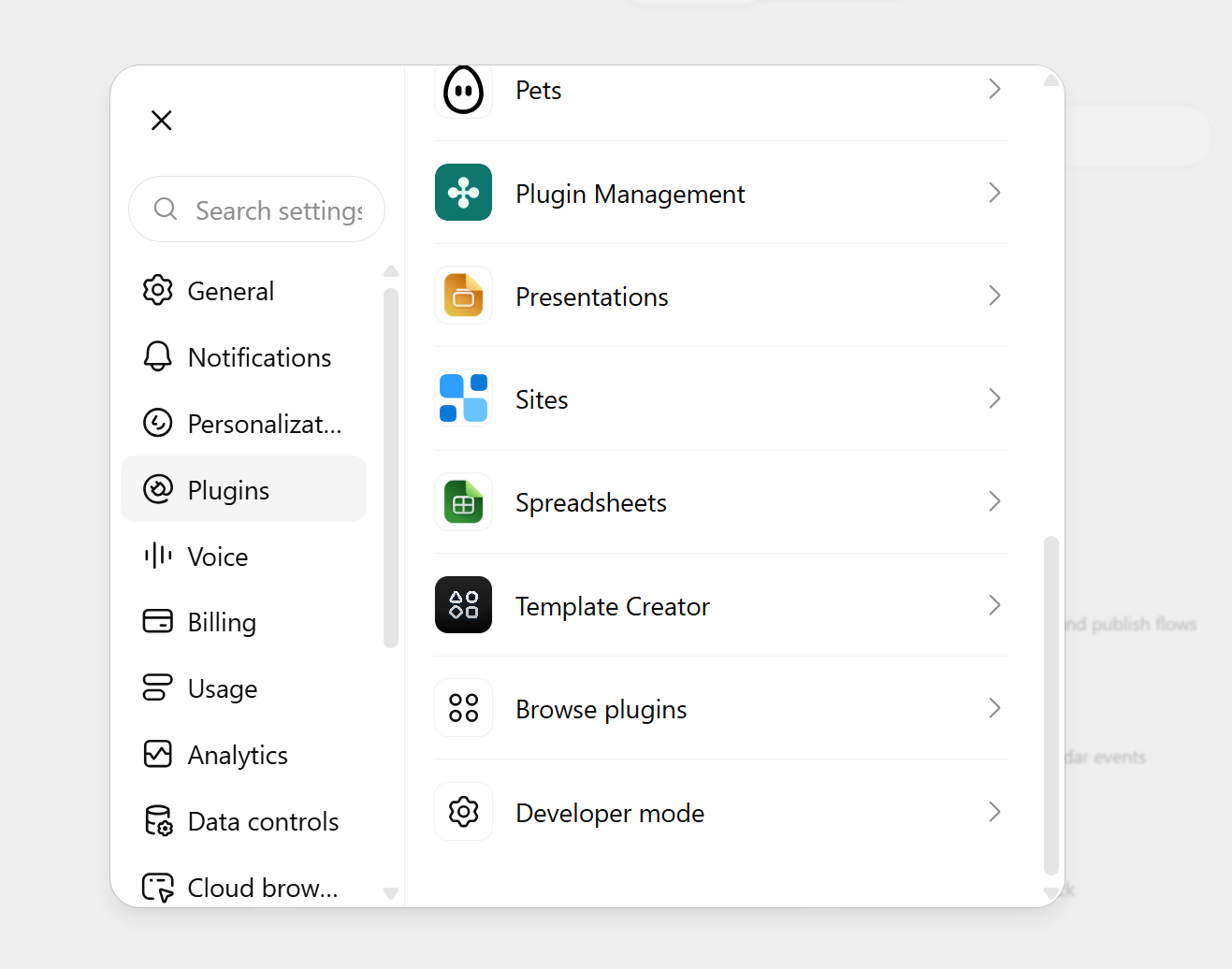
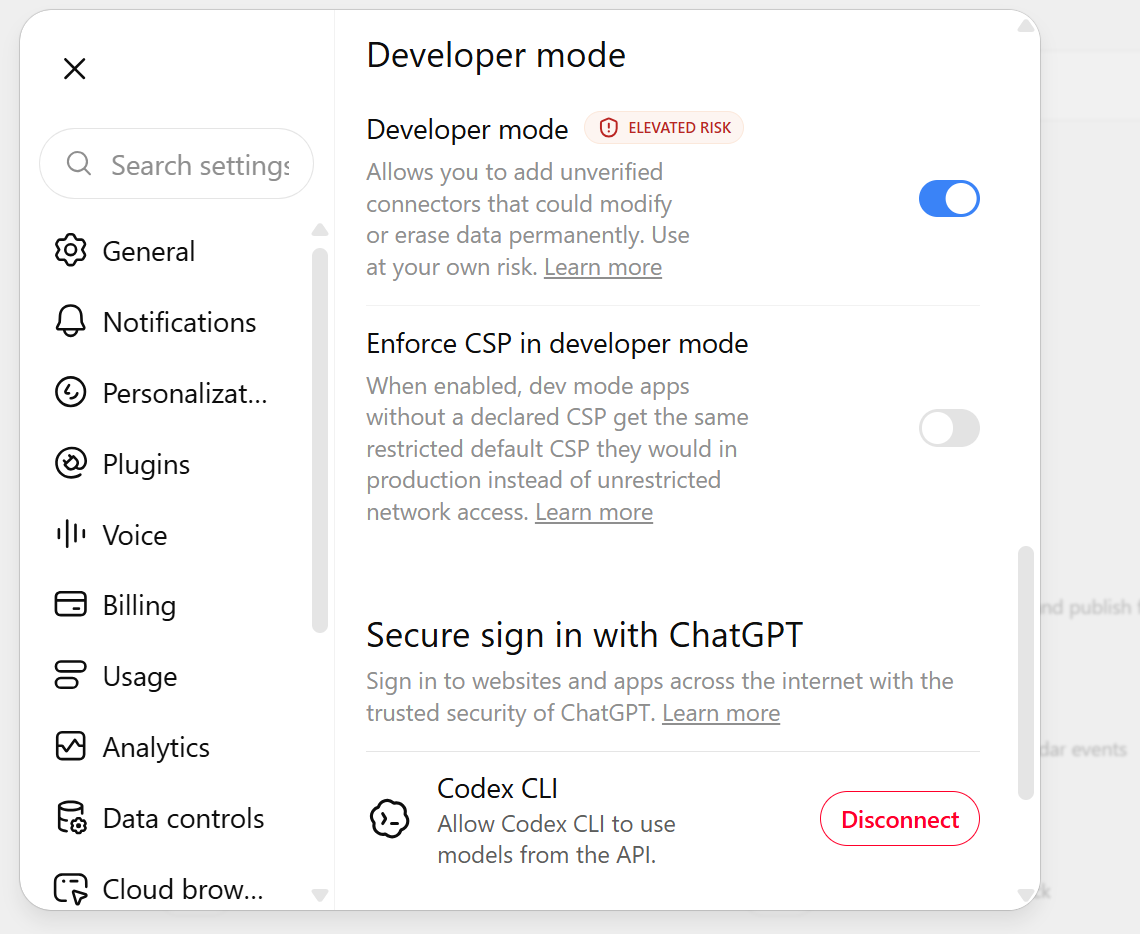
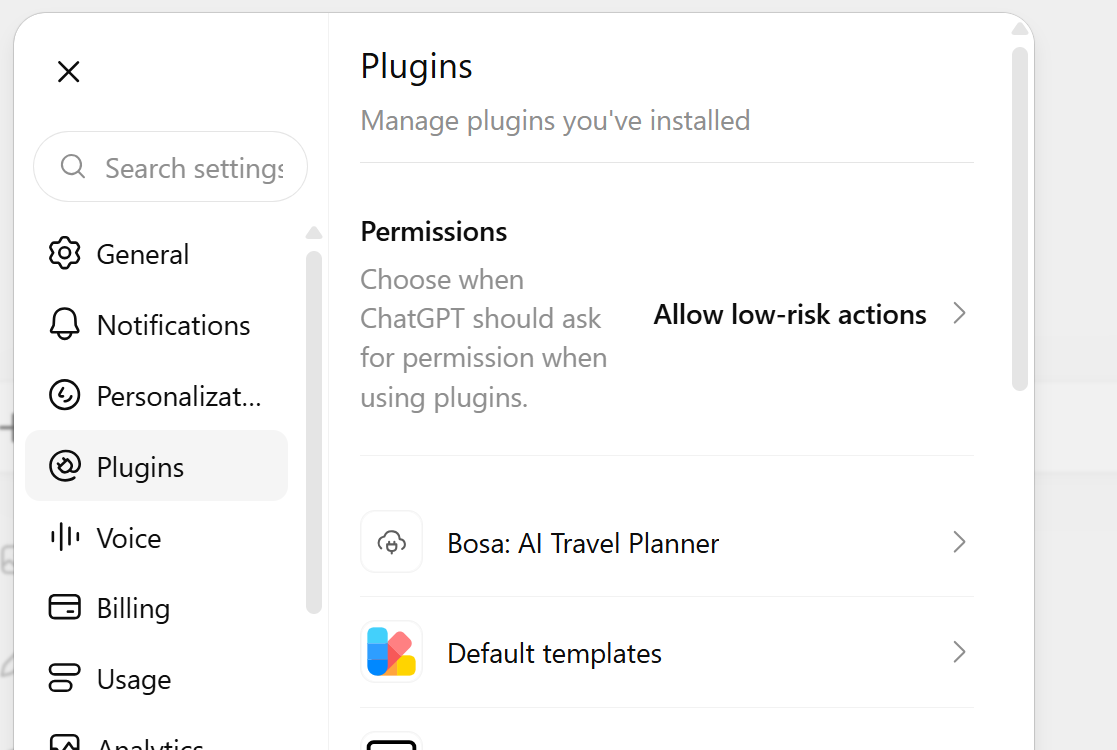
Open ChatGPT on the web. Go to Settings → Plugins → Developer mode and turn on the Developer mode toggle. This lets you add Bosa while it is an unpublished plugin. Some accounts show this setting under Security and login instead. If the option is unavailable, check your ChatGPT plan and workspace permissions.
Show Developer Mode screenshots
2. Add the Bosa connection
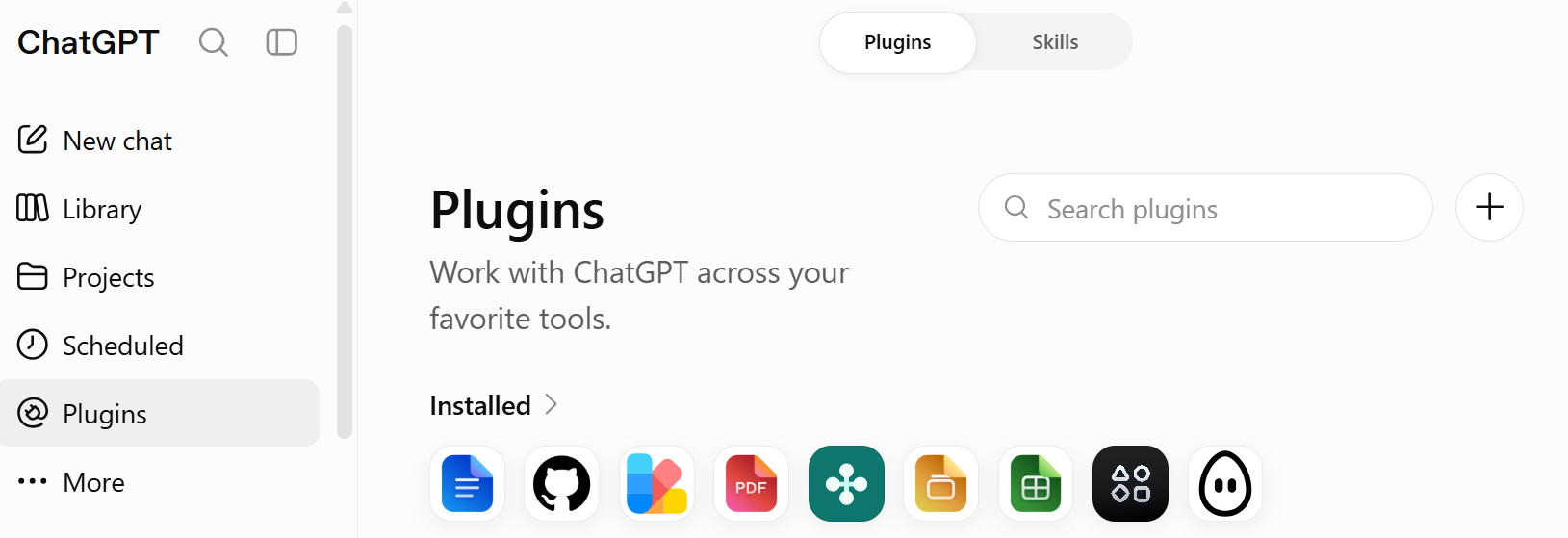
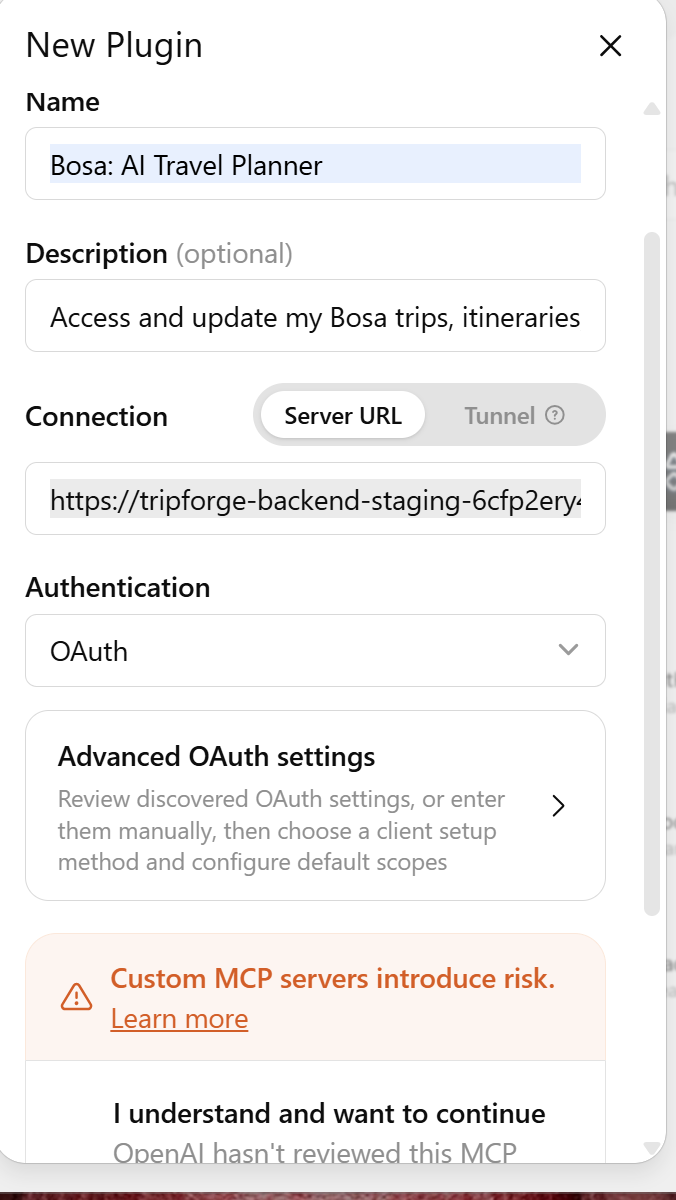
Open ChatGPT Plugins, select the + button, and fill out the form:
- Name
- Bosa: AI Travel Planner
- Description
- Access and update my Bosa trips, itineraries, bookings, and travel plans.
- MCP server URL
https://tripforge-backend-staging-6cfp2ery4q-uc.a.run.app/mcp- Authentication
- OAuth. Keep the default Client ID, Client Secret, and registration settings; no credentials need to be entered.
You can choose your own name and description; the MCP server URL must match exactly. Read any acknowledgment shown, then select Create or Connect.
Show the plugin button and connection form
3. Allow access to your Bosa account
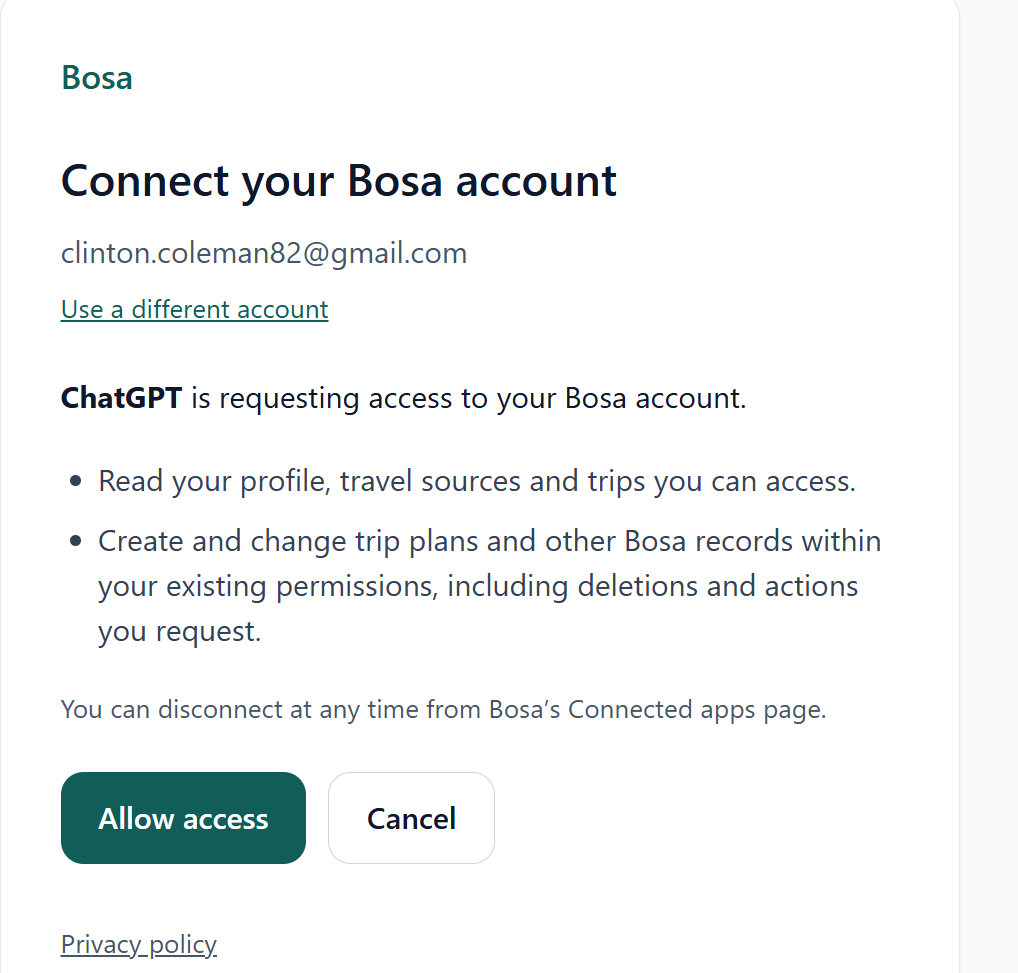
On Bosa's connection page, sign in with the same Google account you use for Bosa. If you are already signed in, check the displayed account and choose Use a different account if needed. Check the account and requested access, then select Allow access. You will return to ChatGPT.
ChatGPT can read your trips and make changes you request. The connection uses your Bosa permissions. You can revoke it later from Bosa's connected apps.
Show account consent and the connected plugin
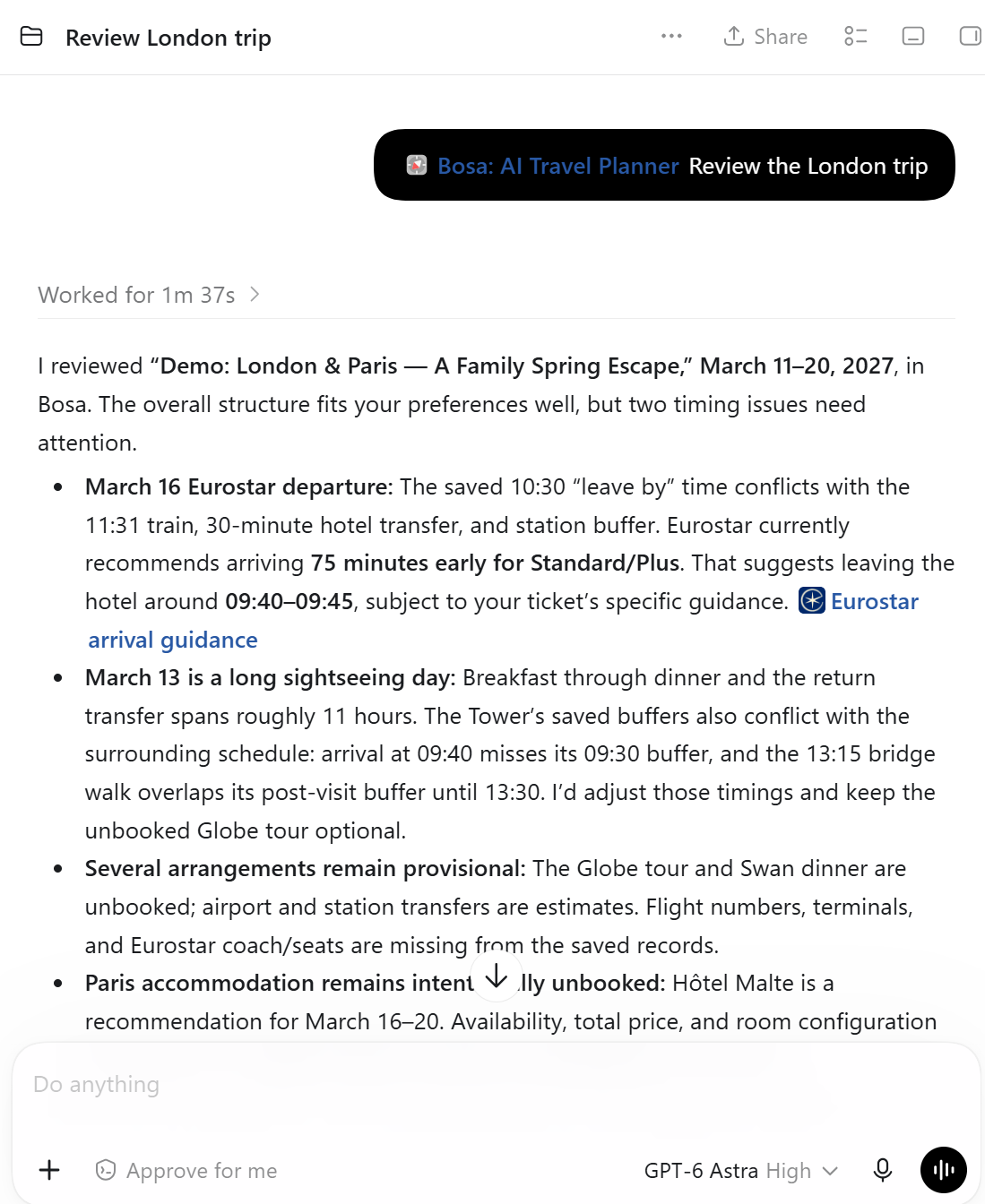
4. Select Bosa in a new conversation
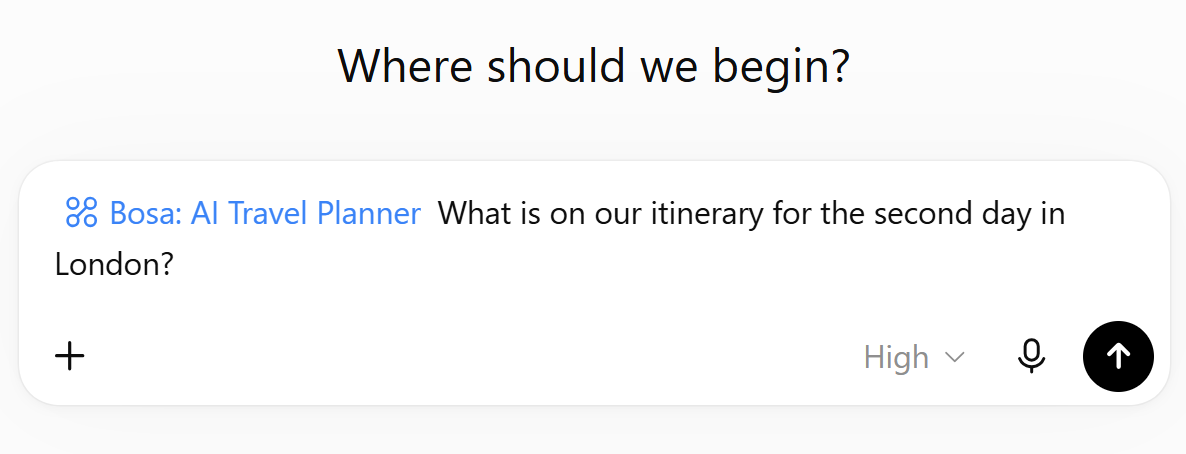
Refresh your browser page after connecting, then start a new ChatGPT conversation. Open the composer's + menu and select Bosa: AI Travel Planner from the plugins list. If your menu groups custom connections under Developer mode, open that first. Then try:
Use Bosa to show me my trips.
Once ChatGPT has read your trips, ask a specific question, such as “What is on our itinerary for the second day in London?” A successful trip read confirms the connection works; a “Connected” label alone does not.
Show Bosa selected in a web conversation
5. Use Bosa in a desktop session
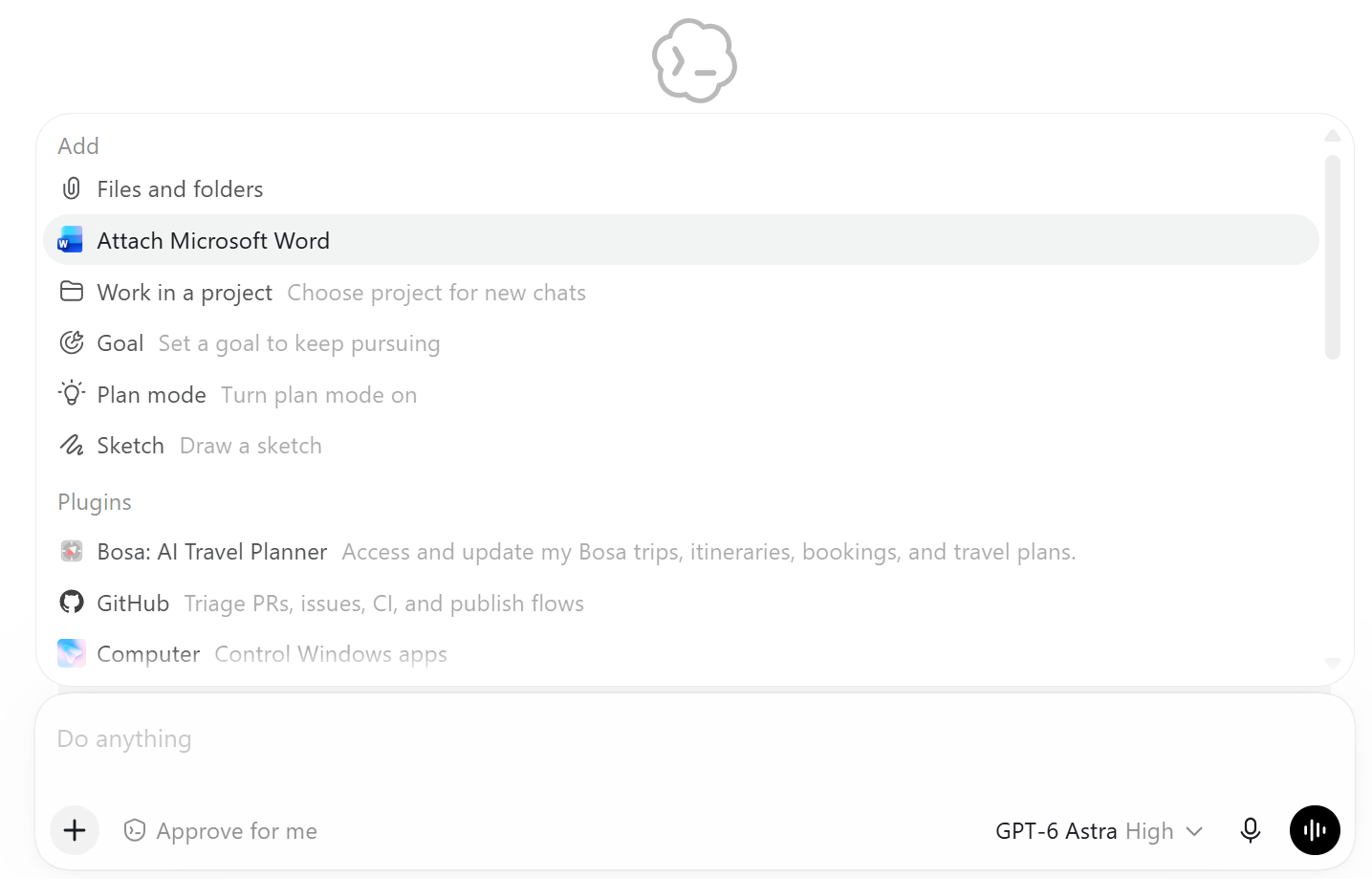
After connecting on the web, open the desktop app with the same ChatGPT account and workspace. Start a new session, open the + menu, and select Bosa: AI Travel Planner under Plugins. Then ask about a saved trip or request an update. This flow has been verified in a Codex desktop session.
Show desktop selection and an example response
Refresh Bosa from time to time
As Bosa evolves, ChatGPT may still have an older list of tools or instructions. Refresh the plugin after a Bosa update, if a feature seems missing, or if you see an error such as “Unknown tool”.
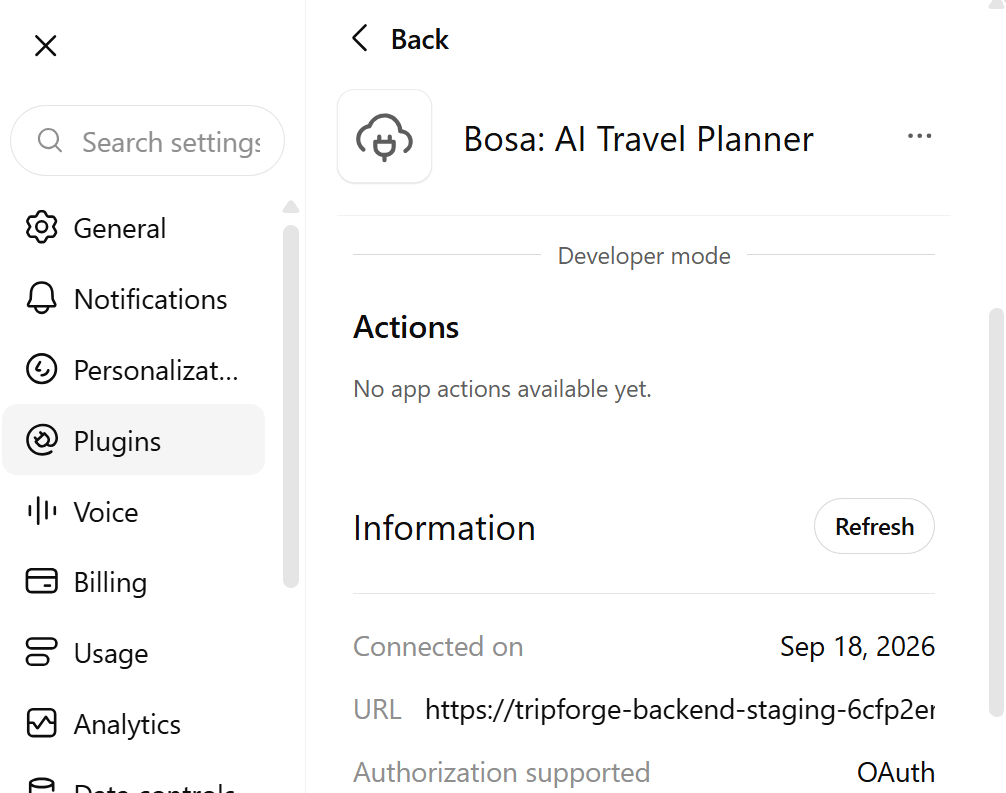
In ChatGPT web, open Settings → Plugins → Bosa: AI Travel Planner, scroll down to Information, and select Refresh. This reloads the tools, descriptions and server instructions. Reloading the browser page alone does not replace this step. Then start a new conversation and select Bosa again.
If the Refresh button is missing, a hard refresh of the ChatGPT page may be needed. Press Ctrl+Shift+R, reopen Bosa's plugin details, then click Refresh when it appears.
For desktop use, refresh the connection on the web first, then start a new desktop session. If desktop still shows old tools and offers its own Refresh control, use it there too. Whether a web refresh updates every existing desktop session has not yet been verified.
Show where to find Refresh
If the connection needs attention
An error appears after Allow access
Open Bosa's connection details in ChatGPT and select Refresh to reload its tools, then try a new conversation. If the error persists, keep the exact message and contact Bosa support before deleting and recreating the connection.
ChatGPT searches for a public plugin or says “plugin not found”
Bosa is a private developer connection. Select it through the conversation's + menu (under Developer mode if shown). If you already did, refresh the connection's tools and try a new conversation. Share the error with support if it continues; renaming Bosa or repeating Google sign-in may not resolve it.
Screenshots captured September 18, 2026. ChatGPT's menus and availability can change. See OpenAI's Developer Mode instructions for its setup and tool-refresh guidance.